Simple guide to the vi editor

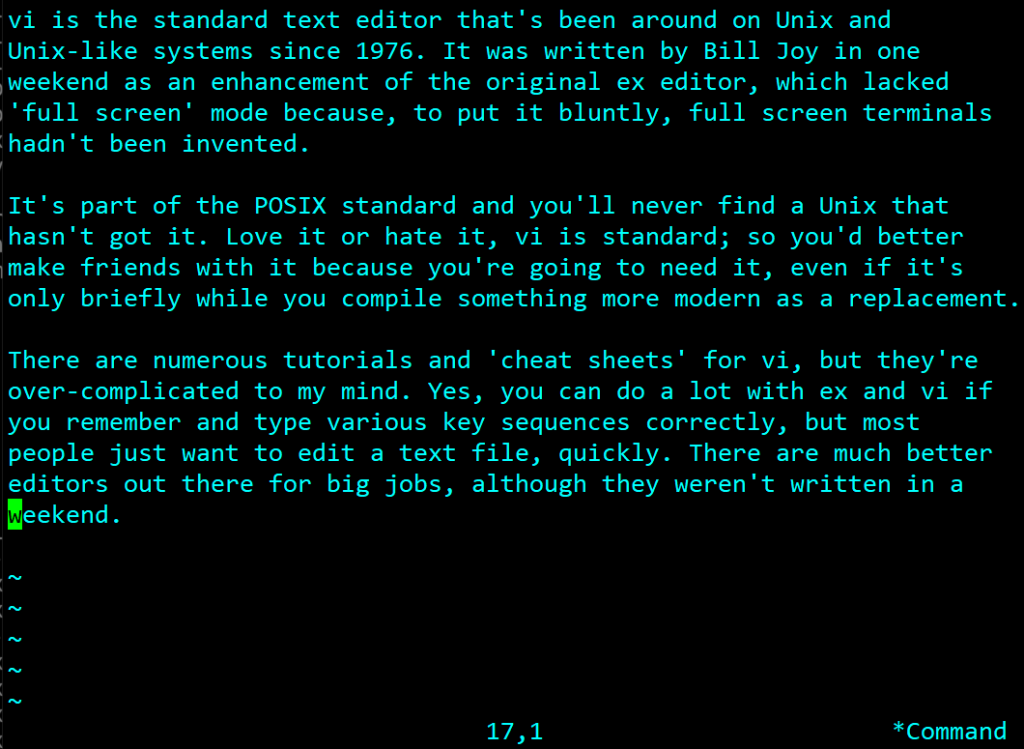
vi is the standard text editor that’s been around on Unix and Unix-like systems since 1976. It was written by Bill Joy in one weekend as an enhancement of the original ex editor, which lacked “full screen” mode because, to put it bluntly, full screen terminals hadn’t been invented.

It’s part of the POSIX standard and you’ll never find a Unix that hasn’t got it. Love it or hate it, vi is standard; so you’d better make friends with it because you’re going to need it, even if it’s only briefly while you compile something more modern as a replacement.

There are numerous tutorials and “cheat sheets” for vi, but they’re over-complicated to my mind. Yes, you can do a lot with ex and vi if you remember and type various key sequences correctly, but most people just want to edit a text file, quickly. There are much better editors out there for big jobs, although they weren’t written in a weekend.

So how do you use it, if you don’t want to remember more complex keystrokes than necessary?

The modes

The first thing you need to understand about vi is that it has “modes”. With any normal editor, you move the cursor to wherever you want to type something, and type away. Not so with vi, but it’s not that bad when you understand it. When you first start vi it’s in Command Mode, which would be better described as “move the cursor mode”. It’s waiting for you to move the cursor somewhere. You can enter a command by prefixing it with a colon (“:”), when it will jump the cursor to the bottom of the screen so you can enter the command. Other modes let you enter text or search for things. To return to the Command Mode (i.e. move the cursor mode) you generally press the [Esc] key. Remember that if you’re stuck.

In Command Mode most of the keys do things, usually moving the cursor, often in expected ways. Be careful what you press.

In this text I’m representing the Enter key on the keyboard with [Enter], and Escape with [Esc]. Other characters in double quotes to make them stand out, but are typed without the double quotes. So let’s get started…

Loading a file to edit

If you’re new to vi you might want to make a backup of the file you’re about to mess with. There are mechanisms to have vi do this for you, but for safety just make a copy yourself:

cp filename filename.safe

Then on to edit the file. Type “vi filename”

This will load the file named filename into the editor. To make the editor a little more friendly you can type:

:set verbose showmode

Followed by Enter.

Quitting or saving a file.

This uses a colon command (see above if you skipped the introduction). To quit type :q followed by the Enter key. If you’ve made changes to the file it will say “File modified since last complete write” or similar, and won’t let you. You can override this by adding a ! to the command to show you really mean it

:q! [Enter]

To write changes to disk use :w <enter> This is the equivalent to “Save” on a modern editor. To write the current file to another file (i.e. Save As…) use :w newfilename [Enter]

A quick shortcut if you want to save and exit the editor in one go is :x [Enter]

Moving around the file

When the file is loaded you’re in Command Mode, which might more usefully be thought of as Movement Mode. You can’t type anything but you can move the cursor around. On anything reasonably modern you can do this using the arrow keys on the keyboard and [PgUp] and [PgDn]. [Home] and [End] probably work too. There are other ways of doing this using original keyboards that lacked cursor keys, which I’ll cover later if needed.

Changing stuff

Let’s assume you’ve got the cursor to the place in the file where you want to make the change. Most of the time you’ll want to either delete stuff or insert stuff. To delete what’s under the cursor type the “x” key. If you want to delete a lot, “D” deletes everything to the end of the line and “dd” deletes the whole line, but if you can’t remember just stick to “x”. Note that it’s case sensitive – “D” and “d” are not the same.

To insert something, type the “i” key to get into Insert Mode. Other modes are available, but Insert Mode is what most people are used to.

When you’re in Insert Mode, everything you type will be inserted, including new lines if you press the return key. To get out of insert mode press the [Esc] key. And this is a general rule, if you’re in a mess with vi keep hitting the [Esc] key until you get back into Command Mode.

You might, of course, have made a mess of the edit. A single “u” will undo the last change you made in Insert Mode. If you press “u” a second time it will toggle the undone changes back.

If you make a real mess of it just quit out using “:q!” and start again. It sometimes pays to do a “:w” while editing to save good changes.

Cut+paste with a mouse

vi has all sorts of ways of moving text around, but to keep it simple I’m going to assume you’re using a virtual terminal (something like PuTTY) and have mouse. Just select the text you want to copy, move to where you want it to go and put vi in insert mode with “i”. If you can’t remember which mode you’re in type [Esc] “i” to be sure. Then right-click the mouse and it will paste.

Search and replace

To search for something in the file hit [Esc] to make sure you’re in Command Mode and type “/” followed by whatever you’re looking for, followed by Enter. If you want to search backwards use “?” instead of “/”. The cursor will jump to the first occurrence it finds.

If you want to search for the next occurrence use the “n” key, if you want to go backwards use the capital “N”.

To do a Search and Replace you’ll just have to go with me on this. Again, make sure you’re in Command Mode and hit “:” for a colon command. To replace “old” with “new” in the entire file the colon command looks like this:

:%s/old/new/g

Basically the %s means search every line and the g means change every occurrence in a line. The “/” marks the old and new fields. If you want to replace something with a “/” character in it use a different separator character like “.” or “|” – it’s just looking for a punctuation mark and it will carry on using whatever punctuation mark it finds first.

That’s it?

You want it to be more complicated? I’ve seen many tutorials and cheat sheets explain a lot of stuff you don’t need for simple editing. Commands to move the cursor quickly, repeated commands and so on. Yes, you can scroll ten lines down using 10j but who cares? Just hit the down arrow ten times – assuming you even know that your destination is that far below. I might add a batch of secondary very useful commands later but they’re not essential. However, read on if you don’t have cursor keys or can’t use a mouse for cut and paste, or care about line numbers.

Line numbers

If you care which line you’re on, possibly because you’re getting a message line “error in line 123” of your config file and need to fix it, there are a few extras that might help. If you want to jump to line 123 use “:123”. As you can imagine, to get to the top of the file quickly you can also use “:1”, and use “:$” to go to the bottom.

You can turn on a display of the current line number and cursor column with “:set ruler” and display line numbers with “:set number”. To turn these things off prefix them with “no” – e.g. “:set nonumber

Cut+paste with keyboard

If you’re using a real hardware terminal instead of a virtual software one (with a mouse) you can still cut and paste, but I’ll need to explain something about buffers and deleting first. When you delete anything in vi it goes into a buffer. The basic delete command is “d” followed by any movement command. Anything between the old and new cursor positions gets deleted and put in the buffer. There are a lot of movement commands, but the one we’re interested in is “jump to marker”.

To place a marker in the file at the cursor position you must be in Command Mode (hit [Esc] if you’re not sure) and then type “ma”. This sets marker “a”. You can also set marker b, c, d and so on, which is useful if you want to bookmark different places in a file.

To jump to a marker use a “ ` ” (single back quote, normally to the left of the “1” on the keyboard) followed by the marker letter – i.e. `a

So to cut some text, set the marker at the start, move to the end and type d`a and the text will disappear into the paste buffer. If you wanted to Copy instead of Cut use y`a instead – y is Copy.

In order to paste the contents of the buffer, go to where you need it and type capital “P”. This will insert at the current cursor position, which is what most people want.

A variation in this is to use a ‘ instead of a ` (a single quote instead of a backquote), which will cut/paste whole lines between the cursor and the marker. Beware, a lower case “p” instead of a capital for paste puts the buffer after the current cursor position by either one character or one line depending on whether you used a ` or a ‘ originally. Stick with P to avoid confusion.

No cursor keys?

If your keyboard doesn’t have cursor keys, or they’re not working, you can use the following to move around:

left=h, right=l, k=up, j=down. Ctrl-B and Ctrl-F give you Page Up and Page Down.

A note on VIM

vim is a “Vi Improved” editor found in GNU/Linux. It claims to be mostly compatible with VI and most of the above should work. One of its improvements is a multi-buffer undo facility, presumably because Linux users make more mistakes.

It’s curious that anyone would want to improve in vi, and I say this having used it for over 45 years now. It’s not an editor that I’d choose as a starting point to write a better one. Improved editors are out there, including the straightforward nano editor that is bundled with most GNU/Linux distros; you may find that more friendly if it’s available.

After all this time using vi I certainly know a few tricks and can use it very quickly and efficiently, but the main reason for learning it now is that it will be there when you need to edit something, on every Unix-like system.

FreeBSD error: leapsecond file expired

You might see something odd in the console log about a leapsecond file:

ntpd[905]: leapsecond file ('/var/db/ntpd.leap-seconds.list'): expired 841 days ago

It just means that the leap second file is out of date, and couldn’t be updated automatically. It’s not a big deal as this data rarely changes. In fact the last one was in 2017. You can force an update with the following line:

service ntpd fetch

However, this might well give you another error like “fetch: https://www.ietf.org/timezones/data/leap-seconds.list: Not Found” The reason is that the IETF is not longer hosting the leap-seconds file although it’s baked into the FreeBSD (and likely other) configs.

On FreeBSD you can easily point it to another host at IANA by adding the following to /etc/rc.conf:

ntp_leapfile_sources="https://data.iana.org/time-zones/data/leap-seconds.list"

After you’ve done this you can trigger it manually using the fetch line above. The old source is actually configured originally in defaults/rc.conf, but it’s best to override it in the local rc.conf – and newer releases of FreeBSD have updated it anyway.

Linux Network Cheat Sheet

This is an rewrite of a much older post.

Some Linux distributions use a system called iproute2 to configure network interfaces, which is a more limited version of the standard Unix system based around ifconfig. The original Linux rewrite of ifconfig was less capable, so rather than bringing it up to Unix standards it was thrown out and a new one written. This lists common tasks that are possible of both, and their equivalents. NB. “eth0” is any network interface in the format your system uses.

TaskUnix standardLinux iproute2
List all interfacesifconfigip addr
List specific interfaceifconfig eth0ip addr show dev eth0
Bring up/down interfaceifconfig eht0 up (or down)ip link set eth0 up (or down)
Set IP addressifconfig eth0 192.168.1.10/24ip addr add 192.168.1.10/24 dev eth0
Configure using DHCPdhclient eth0dhclient eth0
Set IPv6 address
(syntax works with add/delete/alias etc)
ifconfig eth0 inet6 2001:db8::1 prefixlen 64
or
ifconfig eth0 inet6 2001:db8::1/64
ip -6 addr add 2001:db8::1/64 dev eth0
Add appletalk addressifconfig eth0 atalk 45.156ip --appletalk addr add 45.156 dev eth0
Set IP + netmask + broadcast (where defaults not suitable)ifconfig eth0 192.168.1.10 netmask 255.255.255.0 broadcast 192.168.1.255ip addr add 192.168.1.10/24 broadcast 192.168.1.255 dev eth0
Add alias (not explicit on Linux)ifconfig eth0 alias 192.168.1.2 netmask 255.255.255.0ip addr add 192.168.1.2/24 dev eth0
Delete specific IP (not possible on old Linux)ifconfig eth0 delete 192.168.1.2ip addr del 192.168.1.2/24 dev eth0
Rename interfaceifconfig eht0 name wan1ip link set eth0 down
ip link set eth0 name wan1
ip link set wan1 up
Show routing tablenetstat -rnip route
Add default routeroute add default 192.168.1.1ip route add default via 192.168.1.1
Delete default routeroute delete default 192.168.1.1ip route del default via 192.168.1.1
Show DNS serverscat /etc/resolv.confresolvectl status
Add DNS serverEdit /etc/resolv.conf:
nameserver 8.8.8.8
resolvectl dns eth0 8.8.8.8
Delete all DNS serversEdit /etc/resolv.confresolvectl dns eth0 ""
Set domain search orderEdit /etc/resolv.conf:
search example.com local.example.com
resolvectl domain eth0 example.com local.example.com
Show listening socketsnetstat -anss -tulnp
Show interface statusnetstat -iip -s link
Set mtuifconfig eth0 mtu 9000ip link set dev eth0 mtu 9000
View ARP cachearp -aip neigh show
Delete ARP entryarp -d 192.168.1.65ip neigh del 192.168.1.65 dev eth0
Delete ARP cachearp -d -aip neigh flush all

Notes

Old Linux ifconfig couldn’t remove a specific IP address but could remove them all using ifconfig eth0 0.0.0.0. You can get the same effect on iproute2 using “ip addr flush dev eth0”. Unix doesn’t have a command that’s quite so destructive.

If you add an alias address on the same subnet as an existing IP address, give it a netmask of /32.

Old Linux produced a routing table using route -n (not -rn) and you’d need to use “gw” when adding or deleting one (e.g. route add default gw 192.168.1.1)

On Solaris you need to add a -p between “route” and “add” – e.g. route -p add default 192.168.1.1

Most versions of ifconfig on Unix systems accept CIDR notation as an alternative to specifying “netmask 255.255.255.255” – for example “192.168.1.1/24

The ip command will usually infer which are IPv4 and IPv6 addresses but it can be made explicit using “ip -4” or “ip -6”. Likewise ifconfig normally doesn’t require “inet” or “inet6” to figure out which kind of IP address you’re giving it. -6 and inet6 have been used above to be 100% explicit. Linux supports fewer interface types than Unix.

It is not possible to delete or edit a single DNS server using the linux ip system, but you can delete them all and add back the ones you want.

On Linux, ip can only configure interfaces for IPv4 and IPv6 (i.e. it won’t support AppleTalk, ATM, Token Ring, or IPX etc.).

Making changes persist through boot

To configure an interface on boot on BSD use sysrc ifconfig_eth0="DHCP", for a DHCP address or edit rc.conf similarly. For a static address use ifconfig_bge0="192.168.1.123/24” and defaultrouter=”192.168.1.1” and add the nameservers to /etc/resolv.conf with a line like “nameserver 192.168.1.2” For Linux it’s much more complicated using other files or databases.

Debian/Ubuntu older versions

edit /etc/network/interfaces:

auto eth0
iface eth0 inet dhcp
For static address use:
auto eth0
iface eth0 inet static
address 192.168.1.123/24
gateway 192.168.1.1
dns-nameservers 192.168.1.2 192.168.1.3

Ubuntu with Netplan

edit /etc/netplan/01-netcfg.yaml (or similar):

network:
  version: 2
  renderer: networkd
  ethernets:
    eth0:
      dhcp4: true

For static address use:

network:
  version: 2
  renderer: networkd
  ethernets:
    eth0:
      dhcp4: false
      addresses: [192.168.1.123/24]
      gateway4: 192.168.1.1
      nameservers:
        addresses: [192.168.1.2, 192.168.1.3]

Red Hat/CentOS/Fedora (using network-scripts, older versions):

Edit /etc/sysconfig/network-scripts/ifcfg-eth0:

DEVICE=eth0
BOOTPROTO=dhcp
ONBOOT=yes

For static address use:

DEVICE=eth0
BOOTPROTO=static
ONBOOT=yes
IPADDR=192.168.1.123
PREFIX=24
GATEWAY=192.168.1.1
DNS1=192.168.1.2
DNS2=192.168.1.3

Systems with NetworkManager

(e.g., Fedora, Ubuntu desktop), try ip first but if you have to, use nmcli:

sudo nmcli con mod "Wired connection 1" ipv4.method auto
sudo nmcli con up "Wired connection 1"

For static address use:

sudo nmcli con mod "Wired connection 1" ipv4.method manual ipv4.addresses 192.168.1.123/24 ipv4.gateway 192.168.1.1 ipv4.dns "192.168.1.2 192.168.1.3"
sudo nmcli con up "Wired connection 1"

Replace “Wired connection 1” with your connection name (list with “nmcli con show”, get lots of stuff to tweak with “nmcli con show eth0”. You may also use the name of the ethernet interface when you find it.

Systems with systemd-networkd:

Create or edit /etc/systemd/network/20-wired.network:

[Match]
Name=eth0

[Network]
DHCP=yes

For static address use:

[Match]

Name=eth0

[Network]
Address=192.168.1.123/24
Gateway=192.168.1.1
DNS=192.168.1.2
DNS=192.168.1.3

FreeBSD/Linux as Fibre Broadband router Part 3

In parts one and two I covered making the PPP connection, firewall and the DHCP server. This just leaves DNS.

Unbound

FreeBSD has stopped providing a proper DNS server (BIND – the Berkeley Internet Name Daemon) in the base system, replacing it with “unbound”. This might be all you need if you just want to pass DNS queries through to elsewhere and have them cached. It will even allow you to configure your local name server for hosts on the LAN.

To kick off unbound once run “service local_unbound onestart“. This will clobber your /etc/resolv.conf file but it keeps a backup – note well where it’s put it! Probably /var/backups/resolv.conf.20260103.113619 (where the suffix is the date and a random number)

For some strange reason (possibly Linux related) the configuration files for unbound are stored in /var/unbound – notably unbound.conf. By default it will only resolve addresses for localhost, so you’ll need to do a bit of tweaking. Assume your LAN is 192.168.1.0/24 and this host (the gateway/router) is on 192.168.1.2 as per the earlier articles. Add the lines to the server section so it becomes:

server:
        username: unbound
        directory: /var/unbound
        chroot: /var/unbound
        pidfile: /var/run/local_unbound.pid
        auto-trust-anchor-file: /var/unbound/root.key

        interface: 192.168.1.2
        interface: 127.0.0.1
        access-control: 127.0.0.0/8 allow
        access-control: 192.168.1.0/24 allow

        # Paranoid blocking of queries from elsewhere
        access-control: 0.0.0.0/0 refuse
        access-control: ::0/0 refuse

There is a warning at the top of the file that it was auto-generated but it’s safe to edit manually in this case. The interface lines are, as you might expect, the explicit interfaces to listen on. The access-control lines are vital, as listening on an interface doesn’t mean it will respond to queries on that subnet. The paranoid blocking access-control lines are probably redundant unless you make a slip-up in configuring something somewhere else and a query slips in through the back door.

Once configured you can now use 192.168.1.2 as your LAN’s DNS resolver by setting it isc-dhcpd to issue it. A add local_unbound_enable="YES" to your /etc/rc.conf file to have it load on boot.

BIND

Unbound is a lightweight local DNS resolver, but you might want full DNS. I know I do. Therefore you’ll need to install BIND (aka named).

We’re actually looking for BIND9, so search packages for the version you one. This will currently be bind918, bind920 or bind9-devel. Personally I’ll leave someone else to play with the latest version and go for the middle (bind9 version 20).

pkg install bind920

You’ll then need to generate a key to control it using the rndc utility (more on that later)

rndc-confgen -a

Next we’ll need to edit some configuration files:

cd /usr/local/etc/namedb

Here you should find named.conf, which is identical to named.conf.sample in case it’s missing or you break it. The changes are minor.

Around line 20 there’s the listen-on option. Set this to:

listen-on { 127.0.0.1; 192.168.1.2;};

Again, this assumes that 192.168.1.2 is this machine. That’s all you need to do it you want it to provide services to the LAN. While we’re in the options section change the zone file format from modern binary to text. Binary is quicker for massive multi-zone DNS servers, but text is traditional and more convenient otherwise.

masterfile-format text;

If you’re going to do DNS properly you need to configure the local domain. At the the end of the file add the following as appropriate. In this series we’re assuming your domain is example.com and this particular local site is called mysite – i.e. mysite.example.com. All hosts on this site will therefore be named as jim.mysite.example.com, printer.mysite.example.com and so on.

zone "mysite.example.com"
{
        type primary;
        file "/usr/local/etc/namedb/primary/mysite.example.com";
};

zone "1.168.192.in-addr.arpa"
{
        type primary;
        file "/usr/local/etc/namedb/primary/1.168.192.in-addr.arpa";
};

The first file is the zone file, mapping hostnames on to IP addresses. The second is the reverse lookup file. They will look something like this:

; mysite.example.com
;
$TTL 86400      ; 1 day
mysite.example.com        IN SOA  ns0.mysite.example.com. hostmaster.example.com. (
                                2006011238 ; serial
                                18000      ; refresh (5 hours)
                                900        ; retry (15 minutes)
                                604800     ; expire (1 week)
                                36000      ; minimum (10 hours)
                                )
@                       NS      ns0.mysite.example.com.

adderview1              A       192.168.1.204
c5750                   A       192.168.1.201
canoninkjet             A       192.168.1.202
dlinkswitch             A       192.168.1.5
gateway                 A       192.168.1.2
eap245                  A       192.168.1.6
eap265                  A       192.168.1.8
fred-pc                 A       192.168.1.101
ns0                     CNAME       gateway

This is the zone file. I’m not going to explain everything about it here, just that this is a working example and the main points about it.

The first lines, starting with a ‘;’ are comments.

Next comes $TTL, which sets the default time-to-live for everything that doesn’t specify differently, and is basically the number of seconds that systems are supposed to cache the result of a lookup. You might want to reduce this to something like 30 seconds if you’re experimenting. You must specify the default TTL first thing in the file.

Then comes the SOA (Start of Authority) for the domain. It’s specifying the main name server (ns0.mysite.example.com) and the email address of the DNS administrator. However, as ‘@’ has a special meaning in zone files it’s replaced by a dot – so it really reads hostmaster@mysite.example.com. I’ve never figured out how you can have an email address with a dot in the name.

The other values are commented – just use the defaults I’ve given or look them up and tweak them. The only important one is the first number – the serial. This is used to identify which is the newest version of the zone file when it comes to replication, and the important rule is that when you update the master zone file you need to increment it. There’s a convention that you number them YYYYMMDDxx where xx allows for 100 revisions within the day. But it’s only a convention. If you only have one name server, as here, then it’s not important as it’s not replicating.

Next we define the name servers for the domain with NS records. We’ve only got one, so we only have one NS record. The @ is a macro for the current “origin” – i.e. mysite.example.com.

Note well the . on the end of names. This means start at the root – it’s important. Some web browsers allow you to omit it in URLs, and guess you always mean to start at the root – but DNS doesn’t!

Then come the A or Address records. They’re pretty self explanaitory. Because the “origin” is set as mysite.example.com the first line effectively reads:

adderview1.mysite.example.com A 192.168.1.204

This means that if someone looks up adderview1.mysite.example.com they get the IP address 192.168.1.204. Simple! You can have an AAAA record that gives the IPv6 address, but I won’t cover that here.

The last line is line an A record but is a CNAME, which is defining an alias. ns0 is aliased to gateway, which ultimately ends up as being 192.168.1.2 – i.e. the name of our router/DNS server. There is nothing stopping you from having multiple A records pointing to the same IP address – and in some ways it’s better to use an absolute address. It comes down to how you want to manage things, and my desire to get a CNAME example in here somewhere.

The corresponding reverse lookup file goes like this:

; 1.168.192.in-addr.arpa
;
$TTL 86400      ; 1 day
@        IN SOA  ns0.mysite.example.com. hostmaster.example.com. (
                                2006011231 ; serial
                                18000      ; refresh (5 hours)
                                900        ; retry (15 minutes)
                                604800     ; expire (1 week)
                                36000      ; minimum (10 hours)
                                )
@       IN NS      ns0.mysite.example.com.

2       PTR gateway.mysite.example.com.
6       PTR eap245.mysite.example.com.
8       PTR eap265.mysite.example.com.
101     PTR fred-pc.mysite.example.com.
201     PTR c5750m.mysite.example.com.
202     PTR canoninkjet.mysite.example.com.
204     PTR adderview1.mysite.example.com.

As you can see, it’s pretty much the same until you get to the PTR records. These are like A records but go in reverse. In case you’re wondering about the name, it’s important. Note it’s the first three bytes of the subnet but backwards. The last byte is the first part of the PTR line, and the last part is the FQDN to be returned if you do a reverse lookup on the IPv4 address.

Therefore, if you reverse lookup 192.168.1.101 it will look in 1.168.192.in-addr.arpa for a PTR record with 101 as the key and return fred-pc.mysite.example.com.
This all goes back to the history of the Internet, or more precisely, it’s precursor caller ARPAnet. The .arpa TLD was supposed to be temporary during the transition, but it stuck around. Just do it the way I’ve said o or fall flat on your face.

You can have a reverse lookup for IPv6 using a ip6.arpa file, but I’m not going to cover that this time.

Once you’ve made all these changes and set up your zone file, just kick it off with “service named start” (or onestart). To make it start on boot add named_enable=”yes” to /etc/rc.conf

Debugging

You can test it’s working with “host gateway.mysite.example.com 127.0.0.1” and “host gateway.mysite.example.com 192.168.1.2” – both should return 192.168.1.2.

Error messages can be found in /var/log/messages – however they’re not always that revealing! Fortunately BIND comes with some useful checking tools, such a named-checkzone.

named-checkzone mysite.example.com /usr/local/etc/namedb/primary/mysite.example.com

This sanity checks the zone file (second argument) is a proper zone file for the domain name specified in the first argument. We’ve called the file after the domain, which can be confusing but has many advantages in other situations.

You can also check the reverse lookup file in the same way:

named-checkzone 1.168.192.in-addr.arpa /usr/local/etc/namedb/primary/1.168.192.in-addr.arpa

It’ll either come up with warnings or errors, or say it would have been loaded with an OK message.

Next Stage

In Part 2 I explained how to set up the OpenBSD DHCP daemon and here I’ve explained unbound as well as BIND. But for redundancy, the full ISC DHCP Daemon and BIND are necessary as they are able to replicate so one server can carry on if the other fails. That’s the next installment.

Blocking script kiddies with PF

OpenBSD’s PF firewall is brilliant. Not only is it easy to configure with a straightforward syntax, but it’s easy to control on-the-fly.

Supposing we had a script that scanned through log files and picked up the IP address of someone trying random passwords to log in. It’s easy enough to write one. Or we noticed someone trying it while logged in. How can we block them quickly and easily without changing /etc/pf.conf? The answer is a pf table.

You will need to edit pf.conf to declare the table, thus:

# Table to hold abusive IPs
table <abuse> persist

“abuse” is the name of the table, and the <> are important! persist tells pf you want to keep the table even if it’s empty. It DOES NOT persist the table through reboots, or even restarts of the pf service. You can dump and reload the table if you want to, but you probably don’t in this use case.

Next you need to add a line to pf.conf to blacklist anything in this table:

# Block traffic from any IP in the abuse table
block in quick from <abuse> to any

Make sure you add this in the appropriate place in the file (near or at the end).

And that’s it.

To add an IP address (example 1.2.3.4) to the abuse table you need the following:

pfctl -t abuse -T add 1.2.3.4

To list the table use:

pfctl -t abuse -T show

To delete entries or the whole table use one of the following (flush deletes all):

pfctl -t abuse -T delete 1.2.3.4
pfctl -t abuse -T flush

Now I prefer to use a clean interface, and on all systems I implement a “blackhole” command, that takes any number of miscreant IP addresses and blocks them using whatever firewall is available. It’s designed to be used by other scripts as well as on the command line, and allows for a whitelist so you don’t accidentally block yourself! It also logs additions.

#!/bin/sh

/sbin/pfctl -sTables | /usr/bin/grep '^abuse$' >/dev/null || { echo "pf.conf must define an abuse table" >&2 ; exit 1 ; }

whitelistip="44.0 88.12 66.6" # Class B networks that shouldn't be blacklisted

for nasty in "$@"
do
        echo "$nasty" | /usr/bin/grep -E '^[0-9]+\.[0-9]+\.[0-9]+\.[0-9]+$' >/dev/null || { echo "$nasty is not valid IPv4 address" >&2 ; continue ; }

        classb=$(echo "$nasty" | cut -d . -f 1-2)

        case " $whitelistip " in
                *" $classb "*)
                echo "Whitelisted Class B $nasty"
                continue
                ;;
        esac

        if /sbin/pfctl -t abuse -T add "$nasty"
        then
                echo Added new entry $nasty
                echo "$(date "+%b %e %H:%M:%S") Added $nasty" >>/var/log/blackhole
        fi
done

That’s all there is two it. Obviously my made-up whitelist should be set to something relevant to you.

So how do you feed this blackhole script automatically? It’s up to you, but here are a few examples:

/usr/bin/grep "checkpass failed" /var/log/maillog | /usr/bin/cut -d [ -f3 | /usr/bin/cut -f1 -d ] | /usr/bin/sort -u

This goes through mail log and produces a list of IP addresses where people have used the wrong password to sendmail

/usr/bin/grep "auth failed" /var/log/maillog | /usr/bin/cut -d , -f 4 | /usr/bin/cut -c 6- | /usr/bin/sort -u

The above does the same for dovecot. Beware, these are brutal! In reality I have an additional grep in the chain that detects invalid usernames, as most of the script kiddies are guessing at these and are sure to hit on an invalid one quickly.

Both of these examples produce a list of IP addresses, one per line. You can pipe this output using xargs like this.

findbadlogins | xargs -r blackhole

The -r simply deals with the case where there’s no output, and will therefore not run blackhole – a slight efficiency saving.

If you don’t have pf, the following also works (replace the /sbin/pfctl in the script with it):

/sbin/route -q add $nasty 127.0.0.1 -blackhole 2>/dev/null

This adds the nasty IP address to the routing table and directs packets from it to somewhere the sun don’t shine. pf is probably more efficient that the routing table, but only if you’re using it. This is a quick and dirty way of blocking a single address out-of-the-box.

UFS, gmirror and GPT drives

Spot the deliberate mistake

Over eight ago now I wrote a post ZFS is not always the answer. Bring back gmirror!, suggesting that writing off UFS in favour of ZFS wasn’t a clear cut decision and reminding people how gmirror could be used to mirror drives is you needed redundancy. It’s still true, but it probably needs an update as things are done a little differently now.

MBR vs GPT

There have been various disk partition formats over the years. The original PDP-11 Unix contained only a boot block (512b) to kick start the OS, but BSD implemented its own partitioning scheme from 386BSD onwards – 8K long consisting of a tiny boot1 section that was just enough to find boot2 in the same slice, which was then able to read UFS and therefore the kernel. This first appeared 4.2BSD on the VAX.

Then from the early 1990s the “standard” hard disk partition scheme from the MS-DOS Master Boot Record (MBR) seemed like a great idea. Slices got replaced by partitions and you could co-exist with other systems on the same drive; and x86 systems were now really common, especially compared for VAXes.

The so-called MBR scheme had its problems (and workarounds) as Microsoft wasn’t exactly thinking ahead, but these have been fixed thanks to the wonderful GPT scheme, which was actually designed. However, GEOM Mirror and UFS predate GPT adoption and you have to be aware of a few things if you’re going to use them together. And you should be using GPT.

Why should you use GPT just because it’s “new”? Not so new, in fact. It was actually dreamt up more than 25 years by Intel (on the IA-64 I believe). GPT has a backup header so if you lose the first blocks on your drive you’re not dead in the water – a favourite trick with DOS/Windows losing the entire drive for the sake of one sector. GPT allows drives to be more than 2Tb because it has 64-bit logical block addresses. If that’s not enough, it identifies partitions with a UUID so you can move them around physically and the OS can still find them rather than always having to hang them of the same controller port. And if you’re mixing operating systems on the same disk the others are likely to be using GPT too, so they’ll play nice. As long as you have UEFI compatible firmware, you’re good to go. If all your drives are <2TB and you have old firmware, and only want to run FreeBSD, stick to MBR – and keep a backup of the boot block on a floppy just in case.

Gmirror and GPT

As I mentioned, GPT keeps a second copy of the partition information on the disk. In fact it stores a copy at the end of the drive, and if the table at the front is corrupt or unreadable it’ll use that instead. Specifically GPT stores a header in LBA 1 and the partition table in LBA 2-33 (an insanely large partition table but Intel didn’t want to be accused of making the same limiting mistakes as Microsoft).

The backup GPT header is on on the last block of the drive, with the backup partition table going backwards from that (for 33 LBAs).

GMirror, meanwhile, stores its metadata on the last 512-byte sector of the drive. CRUNCH.

So what to do? One method is to use the -h switch when setting up with gmirror:

gmirror label -h m0 da0 da1

This moves the metadata to the front of the disk, which will deconflict it with the GPT header okay but might crunch with other bootloaders, particularly from another OS that’s sharing the same disk, and which we have no control of. I say might. Personally, I wouldn’t be inclined to take the risk unless I’m dedicating the drive to FreeBSD.

The safe method is to NOT mirror the entire disk, only the partitions we’re interested in. Conventionally, and in the 2017 post, you mirrored the entire drive and therefore the drives were functionally identical without any further work. The downside was that if you replaced a drive you needed one exactly the same size (or larger), and not all 500Gb drives are the same number of blocks, although there’s a pretty good chances these days. If you did happen to be a block or two short on the new one you’d be out of luck.

GEOMs and disks?

I’ve explained how to mirror a single partition already, but not gone into the technicalities. If you’re new to FreeBSD you might not have cottoned on what a GEOM is. It’s short for “geometry”, which probably doesn’t help with understanding it one bit.

It gets the name from disk geometry, but don’t worry about the name. It’s an abstraction layer added to FreeBSD between the physical drive (provider) and higher level functions of the OS such as filing systems (consumers). You can add GEOM “classes” between the provider and consumer to provide RAID, mirroring, encryption, journaling, volume management and suchlike. Before ZFS, this was how you got fancy stuff done. Now, not so much. But the GEOM mirror class (aka gmirror) is still very useful indeed.

But the bottom line is that a disk partition can be a “provider” in just the same way as the whole disk, so what works for a disk will also work for a partition. Chances are the installer has partitioned up your drive thus:

=>        40  5860533088  ada0  GPT  (2.7T)
          40        1024     1  freebsd-boot  (512K)
        1064         984        - free -  (492K)
        2048     4194304     2  freebsd-swap  (2.0G)
     4196352  5856335872     3  freebsd-ufs (2.7T)
  5860532224         904        - free -  (452K)

This means /dev/ada0p3 is the UFS partition we’re interested in mirroring. Believe it or not, partition numbers start at one, not zero!

How to actually do it

So if you’ve installed your system and now want to add a GEOM mirror, proceed as follows. Let’s assume your second drive is ada1, which would be logical.

You’ll have to partition it so it has at least one partition the same size as the one you want to mirror. Chances are you’ll want all partitions common between drives. The quickest way to achieve this is to simply copy the partition table:

gpart backup ada0 | gpart restore -F ada1

You can sanity check this with gpart show ada1, which should output the same as gpart show ada0.

Load the geom_mirror module

kldload geom_mirror
echo 'geom_mirror_load="YES"' >> /boot/loader.conf

The second line adds it to loader.conf to make it load on boot, but only do it if it’s not there already. The kldload will complain if it’s already loaded, which is a good clue you don’t need the second line.

Create the mirror

gmirror label ufsroot /dev/ada0p3 /dev/ada1p3

The “label” subcommand simply writes the metadata to the disks or partitions – remember disks or partitions are all the same to GEOM. The name “ufsroot” is chosen by me to be meaningful. Manuals use things like gm0 for GEOM mirrors and people have come to think it’s important they’re named this way, when the opposite is true. You already know it’s a GEOM mirror because the device is in /dev/mirror – it’s more helpful to know what it’s used for, e.g. UFS root, or swap, or var or whatever.

You can, while you’re at it, mirror as many partitions as you wish if you have separate ones for other purposes. You can even mirror a zfs partition without ZFS knowing you’re doing it if you’re crazy enough. Mirroring the swap partitions is something you should definitely consider.

You can check it’s worked with gmirror status, which should output something like this:

  Name         Status   Components
mirror/ufsroot COMPLETE ada0p3 (ACTIVE)
                        ada1p3 (SYNCHRONIZING)

Wait until it’s finished synchronising, which will take a long time on a large disk. Perhaps go to bed.


Mount the mirror

This process will have created a new device called /dev/mirror/ufsroot but you still have to mount it in place of the “old” UFS partition. This is controlled in the normal way by /etc/fstab, so make a backup and fire up your favourite editor.

Look for the entry for /dev/ada0p3 and change it to /dev/mirror/ufsroot:

/dev/mirror/ufsroot / ufs rw 1 1

Reboot and you should be good.

Boot code

Although your UFS partition is mirrored, if ada0 fails, the system won’t boot as it stands as ada1 lacks the boot code. You can add this this easily enough:

gpart bootcode -b /boot/pmbr -p /boot/gptboot -i 1 ada1

Finally, what about swap partitions? For robustness, mirror them too in the same way:

gmirror label swap /dev/ada0p2 /dev/ada1p2

Then edit fstab to swap on /dev/mirror/swap. Remember “swap” is a meaningful name chosen by you!

Alternatively you can edit fstab to swap on ada1p2 as well, which spreads the load (best for performance). Or you can just leave it as it is – if ada0 fails and you reboot you’ll have no swap until you fix it, but you’ll probably be worrying about other things if that happens.

Function Keys with Apache Guacamole and AIX

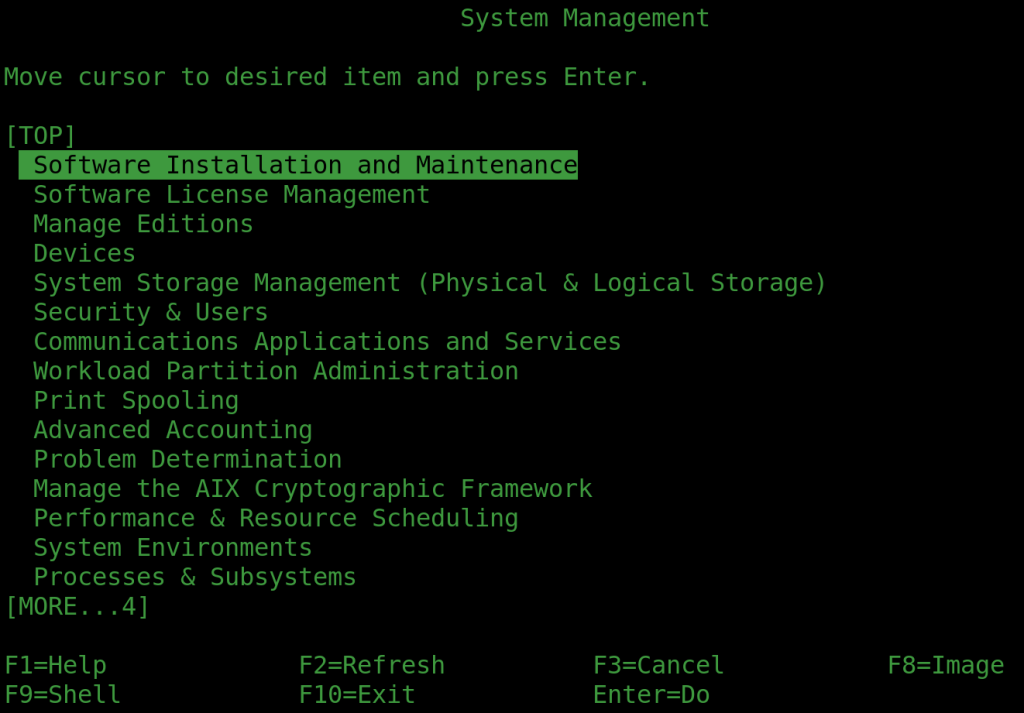
To use AIX you really need working function keys on your keyboard – programs like SMIT use them a lot. But if you’re using Guacamole you’ll notice that F1..F5 don’t work. You can verify you have the problem by keying them in and they appear to produce the letters A..E. The workaround is to key ESC-1 for F1 ESC-2 for F2 etc but it’s a pain.

If you do a hex dump of the keyboard input you’ll discover F1 is actually sending 1b 5b 5b 41, which are the ASCII codes for the Escape key followed by ‘[[‘ followed by upper-case A. What?

Normal terminals output ^[[[11~ for F1, ^[[[12~ for F2, ^[[[13~ for F3 and so on. (^[ generates 0x1b – i.e. the same as the ASCII Escape key. ^ conventionally means type the next character with the Ctrl key). Guacamole uses the conventional definitions for F6 onwards, but not the first five. Although function keys are programmable on real terminals, if you remember those, no one ever programmed them because if they were used in an application it wouldn’t recognise the macro you’d changed them to, as it’d be expecting the default sequence. The application on the host could reprogram them, of course, but it would have to do this for every terminal type – including new ones it didn’t know about – and the whole thing got silly. So anyone with any sense left them to send the macro as standard, out-of-the-box.

So why on earth does Guacamole send something completely different for the first five? It’s something to do with Linux, where a long time ago someone who didn’t understand what was going on broke the convention. And, it turns out, Guacamole is emulating a Linux keyboard/terminal by default. There is a plan to fix this, but it can’t do it in the current 1.6.0 version. Incidentally, I’m talking about AIX 7.3 (and not expecting a new version for that any time ever).

No problem – you can fix this by setting the terminal-type parameter in user-mapping.xml to something AIX knows about, right? VT220 perhaps. Right? Wrong! It turns out that Guacamole ignores this – it just feeds it to the host when it asks for a terminal ID. It doesn’t change the way it behaves itself at all – the function keys are still wonky.

To fix this issue you’ll need fix the termcap on AIX, creating a Guacamole-specific set of mappings and then (ideally) get Guacamole to ask AIX to select it for you.

There are two ways to fix the termcap, DIY or cut/paste from the one I’ll include below. It’s possibly better to get used to doing it yourself as you might find some other things that need tweaking.

First dump the existing xterm information, which is otherwise “close enough”:

infocmp xterm >xterm-guac.ti

Next open xterm-guac.ti in the editor of your choice (vi or vi with AIX) to find the function key mappings and change them to what Guacamole actually sends. The best way to see what’s actually being sent by any key is to use the standard Unix utility “hd” to hex dump stdin, but it’s not no AIX so you’ll have to use “od -x” instead. Come on IBM! We stopped using octal when we went from 12 to 16-bit (PDP-11 in 1970)

The first (non-comment) line of xterm-guac.ti file defines which terminal this is – it’s not taken from the filename. Having just dumped the xterm definitions, it will say it’s “xterm”. We want to define a new terminal rather than redefining xterm, because although this would work, the next time someone logs on using, say, PUTTY or actual xterm they’ll be swearing at whoever broke the function keys for them. (If, on the other hand, you can’t fix the configuration in Guacamole to use the correct terminal definition, set this to the one it does use – probably leave it as xterm)

So the top line should read something like:

xterm-guac|Guacamole terminal emulator
or
xterm|xterm fixed for Guacamole terminal emulator

Further down you’ll find entries like this (for F1): “kf1=\E[[[11~” Change them to what’s actually sent, i.e. “kf1=\E[[A“. The “\E” is the way the termcap system specifies the Escape key, because you can never have enough conventions. The definitions are comma separated – the ‘,’ is not part of the sequence!

Once you’ve saved the file you need to compile and install it, which is really easy:

tic -v xterm-guac.ti

The -v is optional – it just outputs a couple of lines so you know it’s done something:

Working in /usr/share/lib/terminfo
Created x/xterm-guac

And now you’re good to go – AIX has a new type of terminal that matches Guacamole. All you need to do now is tell Guacamole it’s there by editing the connection data in user-mapping.xml (or the equivalent if you’re using a different authentication module). Something like this works well to get that IBM 3270 feeling.

    <connection name="AIX machine">
            <protocol>ssh</protocol>
            <param name="hostname">your-hostname</param>
            <param name="port">22</param>
            <param name="font-name">monospace</param>
            <param name="font-size">24</param>
            <param name="color-scheme">green-black</param>
            <param name="terminal-type">xterm-guac</param>
    </connection>

You don’t need to restart Tomcat, just log out and back in as a user and Guacamole-client will pick up the new settings.

Happy smittying!

Finally, as promised, here’s the tweaked terminal definition (i.e. xterm-guac.ti):

xterm-guac|X11 terminal emulator,
        am, bce, km, mc5i, mir, msgr, npc, xenl,
        colors#8, cols#80, it#8, lines#24, pairs#64,
        acsc=``aaffggiijjkkllmmnnooppqqrrssttuuvvwwxxyyzz{{||}}~~,
        bel=^G, blink=\E[5m, bold=\E[1m, cbt=\E[Z,
        civis=\E[?25l, clear=\E[H\E[2J, cnorm=\E[?12l\E[?25h,
        cr=\r, csr=\E[%i%p1%d;%p2%dr, cub=\E[%p1%dD, cub1=\b,
        cud=\E[%p1%dB, cud1=\n, cuf=\E[%p1%dC, cuf1=\E[C,
        cup=\E[%i%p1%d;%p2%dH, cuu=\E[%p1%dA, cuu1=\E[A,
        cvvis=\E[?12;25h, dch=\E[%p1%dP, dch1=\E[P,
        dl=\E[%p1%dM, dl1=\E[M, ech=\E[%p1%dX, ed=\E[J,
        el=\E[K, el1=\E[1K, flash=\E[?5h$<100>\E[?5l,
        home=\E[H, hpa=\E[%i%p1%dG, ht=\t, hts=\EH,
        ich=\E[%p1%d@, il=\E[%p1%dL, il1=\E[L, ind=\n,
        indn=\E[%p1%dS, invis=\E[8m,
        is2=\E[!p\E[?3;4l\E[4l\E>, kDC=\E[3;2~, kEND=\E[1;2F,
        kHOM=\E[1;2H, kIC=\E[2;2~, kLFT=\E[1;2D, kNXT=\E[6;2~,
        kPRV=\E[5;2~, kRIT=\E[1;2C, kb2=\EOE, kbs=\b,
        kcbt=\E[Z, kcub1=\EOD, kcud1=\EOB, kcuf1=\EOC,
        kcuu1=\EOA, kdch1=\E[3~, kend=\EOF, kent=\EOM,
        kf1=\E[[A, kf10=\E[21~, kf11=\E[23~, kf12=\E[24~,
        kf13=\E[2P, kf14=\E[2Q, kf15=\E[2R, kf16=\E[2S,
        kf17=\E[15;2~, kf18=\E[17;2~, kf19=\E[18;2~,
        kf2=\E[[B, kf20=\E[19;2~, kf21=\E[20;2~,
        kf22=\E[21;2~, kf23=\E[23;2~, kf24=\E[24;2~,
        kf25=\E[5P, kf26=\E[5Q, kf27=\E[5R, kf28=\E[5S,
        kf29=\E[15;5~, kf3=\E[[C, kf30=\E[17;5~,
        kf31=\E[18;5~, kf32=\E[19;5~, kf33=\E[20;5~,
        kf34=\E[21;5~, kf35=\E[23;5~, kf36=\E[24;5~,
        kf37=\E[6P, kf38=\E[6Q, kf39=\E[6R, kf4=\E[[D,
        kf40=\E[6S, kf41=\E[15;6~, kf42=\E[17;6~,
        kf43=\E[18;6~, kf44=\E[19;6~, kf45=\E[20;6~,
        kf46=\E[21;6~, kf47=\E[23;6~, kf48=\E[24;6~,
        kf49=\E[3P, kf5=\E[[E, kf50=\E[3Q, kf51=\E[3R,
        kf52=\E[3S, kf53=\E[15;3~, kf54=\E[17;3~,
        kf55=\E[18;3~, kf56=\E[19;3~, kf57=\E[20;3~,
        kf58=\E[21;3~, kf59=\E[23;3~, kf6=\E[17~,
        kf60=\E[24;3~, kf61=\E[4P, kf62=\E[4Q, kf63=\E[4R,
        kf7=\E[18~, kf8=\E[19~, kf9=\E[20~, khome=\EOH,
        kich1=\E[2~, kind=\E[1;2B, knl=\r, knp=\E[6~,
        kpp=\E[5~, kri=\E[1;2A, ktab=\t, mc0=\E[i, mc4=\E[4i,
        mc5=\E[5i, op=\E[39;49m, rc=\E8, rev=\E[7m, ri=\EM,
        rin=\E[%p1%dT, rmacs=\E(B, rmam=\E[?7l,
        rmcup=\E[?1049l, rmir=\E[4l, rmkx=\E[?1l\E>,
        rmm=\E[?1034l, rmso=\E[27m, rmul=\E[24m, rs1=\Ec,
        rs2=\E[!p\E[?3;4l\E[4l\E>, sc=\E7,
        setb=\E[4%?%p1%{1}%=%t4%e%p1%{3}%=%t6%e%p1%{4}%=%t1%e%p1%{6}%=%t3%e%p1%d%;m,
        setf=\E[3%?%p1%{1}%=%t4%e%p1%{3}%=%t6%e%p1%{4}%=%t1%e%p1%{6}%=%t3%e%p1%d%;m,
        sgr=%?%p9%t\E(0%e\E(B%;\E[0%?%p6%t;1%;%?%p2%t;4%;%?%p1%p3%|%t;7%;%?%p4%t;5%;%?%p7%t;8%;m,
        sgr0=\E(B\E[m, smacs=\E(0, smam=\E[?7h,
        smcup=\E[?1049h, smir=\E[4h, smkx=\E[?1h\E=,
        smm=\E[?1034h, smso=\E[7m, smul=\E[4m, tbc=\E[3g,
        u6=\E[%i%d;%dR, u7=\E[6n, u8=\E[?1;2c, u9=\E[c,
        vpa=\E[%i%p1%dd,

You’ll notice that the shifted function keys look a bit suspect (e.g. kf13=…) but fixing these is left as an exercise for any reader that actually uses shifted function keys. I can’t find an AIX program that uses them to test it!

Finally, if you’re trying to get the backspace key to work on-screen as well as in the input buffer, try adding “stty echoe” to your .profile.

Incidentally, you may need to fix the standard xterm TI to work with standard XTERM (e.g. PUTTY) as that’s wonked on the AIX side – it depends on how you have PUTTY set up. But that’s another story.

ssh login from Windows to AIX

I’ve written about how bad passwords are for years, and also how to set up certificate login on Unix. But nothing for over ten years – because it hasn’t changed. So today, to make a change, let’s connect Windows 10 command line to AIX (IBM’s Unix).

Windows actually has command line ssh built-in these days. Type ‘ssh’ to make sure yours has. It also has the standard program to generate ssh keys, called ssh-keygen. So we should be good to go. You can just run it with no options as the defaults are sensible. It looks like this:

C:\Windows> ssh-keygen
Generating public/private ed25519 key pair.
Enter file in which to save the key (C:\Users\FrankL/.ssh/id_ed25519):
Enter passphrase (empty for no passphrase):
Enter same passphrase again:
Your identification has been saved in C:\Users\FrankL/.ssh/id_ed25519
Your public key has been saved in C:\Users\FrankL/.ssh/id_ed25519.pub
The key fingerprint is:
SHA256:x5cMyeR7OoIRl1OrD5hFbPyMYQ+J6dLqqwGAzKeKDeE frankL@FrankPC
The key's randomart image is:
+--[ED25519 256]--+
| =..o |
|+ o.O* o |
|+o . o.o=B* |
|o.o . o*.+++ . |
|oE o+ S + = |
|o+ . o + + |
|o o. . . + |
| .. . . |
| …. |
+----[SHA256]-----+

What you can’t see above is that I’ve actually entered a passphrase (i.e. password) twice. This is highly recommended if you’re not sure your certificates are in a safe place, and as they’re stored on a Windows PC it’s a pretty safe bet they’re not! This password will be required each time the certificate is used. If you’re sure the certificate is safe, you can leave it blank.

Running ssh-keygen will have created a pair of certificates in C:\Users\FrankL\.ssh\ – where the directory name will depend on your username (mine is ‘FrankL’, in case that isn’t obvious). Note the full stop before .ssh – it’s a Unix thing!

There are two certificates – id_ed25519 and id_ed25519.pub. The .pub means it’s the public one. It’s safe (and even required) that everyone can read its contents. The other one is your private certificate, and must be kept completely secure.

The public key will contain something like this:

ssh-ed25519 AAAAC3NzaC1lZDI1NTE5AAAAILgxyzclTiLK/xHWa0wQ80SYQmSu+aWBOVAatqnyP/ke frankL@FrankPC

The first part (up to the space) is the type of key, the middle part is a magic number that can be used with the private key to prove it’s genuine, and the last bit (frankL@FrankPC) is just a comment about where the key comes from. You can edit it to something that makes more sense if required. The key is all on one line, however it appears here.

Next you need to log in to your AIX system using your password. You’ll be in your home directory. SSH keys are kept in a hidden directory called .ssh, which may or may not exist already.

mkdir .ssh
cd .ssh
cat >>authorized_keys

You may already have an authorized_keys file, but it won’t matter as this appends the new key. Paste the public key into the window and type Ctrl-D to end. “authorized_keys” is a text file and can be modified using an editor of your choice if required.

You can then log out of AIX and return to Windows.

To use your new ssh keys to log in we’re going to have to deal with the fact that your username on Windows may not be the same as on AIX/Unix/Linux, and therefore tell ssh which certificate it needs to use. Let’s assume the AIX machine is called “unixhost” and your user-id on it is just frank (without the L)

ssh unixhost -i C:\Users\FrankL\.ssh\id_ed25519 frank@unixhost

The “-i C:\Users\FrankL\.ssh\id_ed25519” here tells ssh which certificate to use, and we’re forcing the user name to be frank with “frank@” in front of the hostname. If, however, all your user IDs match it will just go to your home directory and use the key it find there. It will, by default, try log you in using the same username on both machines.

If you’ve set a password on your certificate you’ll be prompted for it when you connect. This prevents a stolen certificate from being used. If you haven’t set a password just make sure no one else can get hold of your private certificate! If they do, find the certificate in the authorized_keys file and delete it.

You may also want to move your private certificate to a more convenient location, and you can rename it anything you like.

Using a certificate login is far more secure and convenient that a password – a win-win. For added security, disable password login on the AIX/Unix machine, but just be sure you don’t lose your private key. It’s not a bad idea to keep a backup admin account on a host with a very long password that’s only kept on a piece of paper in a sealed envelope in a safe. Because such a password isn’t used except in an emergency there no chance it can be pilfered using a keylogger.

Prepending stuff to a Unix file

(Includes Linux/bash quirks)

Prepending is, of course, adding stuff to the front of a file whereas appending is sticking it on the end. Prepending is an affront to sequential file handling and should never be attempted, but if you really want to do it anyway, it got a few of us thinking.

To append stuff to a file it’s easy.

echo New stuff >> existing-file

The first thing that came into our heads was to reverse the file, append the new stuff and then reverse it again. Except “rev” reverses characters, as well as lines, so the stuff you want to append would have to be reversed to it came out the right way and… it was getting messy.

Someone suggested tac to reverse the file line-by-line, which was better, but tac???? Apparently it’s a Linux reverse “cat” that writes stuff out backwards line by line. On Unix it appears to be the equivalent of “tail -r”, but the -r option doesn’t exist on the GNU version. I see that a lot on Linux – they have a cut-down version of some Unix utility and spawn another utility to fill the shortcomings rather than adding it.

But, even with tail -r (or tac) it gets a bit messy – you really need a temp file as far as I can figure it. Does anyone have devious way to avoid it?

So just go for simple. On GNU systems:

echo New stuff | cat <(cat) existing-file > temp && mv temp existing-file

This is only going to work with bash, which has an extension that captures the output of a process and feeds it into stdin: <(....). You do the same easily Bourne shell using a named pipe, but it’s just making things more complicated when there’s a simpler solution when a utility uses a – to stand for stdin in a list of file arguments:

echo New stuff | cat - existing-file > temp && mv temp existing-file

But this is still using a temporary file.

Then it was suggested that sed -i might do it “in place”. If course it’s not in-place on the disk, but it looks neater and you can pretend it’s okay.

echo New Stuff | sed -i "1i $(cat)" existing-file

This was a team effort – Stefan persevered with sed, I added the stdin capture using cat. Note that this is GNU sed – the original sed would require you to specify a backup file extension – i.e. stick a ” after the -i (that’s two single quotes for an empty string). Actually, specifying “.backup” might be wise.

Now back to some real work.

Unix chmod and chown

Following on from Basic UNIX file commands, here’s a bit there wasn’t time for on changing metadata on files.

These two commands change the files permissions and ownership. Permissions is information associated with a file that decides who can do what with it. This was once called the file mode, which is why the command is chmod (Change MODe). Files also have owners, both individuals and group of users, and the command to change this is chown (CHOWNer).

chown is easiest, so I’ll start there. To make a file belong to fred the command is:

chown fred myfile

To change the owning group to accounts:

chown :accounts myfile

And to change both at once:

chown fred:accounts myfile

Changing a files permissions is more tricky, and there are several ways of doing it, but this is probably the easiest to remember. You’ll recall that each file has three sets of permissions: Owner, Group and Other. The permissions themselves are read, write and execute (i.e. it’s an executable program).

chown can set or clear a load of permissions in one go, and the format is basically the type of permission, and ‘+’ or ‘-’ for set or clear, and the permissions themselves. What? It’s probably easier to explain with a load of examples.:

chmod u+w myfile

Allows the user of the file to write to it (u means user/owner)

chmod g+w myfile

Allows any user in the group the file belongs to write to it.

chmod o+r myfile

Allows any user who is not in the files group or the owner to read it. (o means “other”).

You can combine these options

chmod ug+rw

Allows the owner and the group to read and write the file.
chmod go-w

Prevents anyone but the user from being able to modify the file.

If you want to run a program you’ve just written called myprog.

chmod +x myprog

If you don’t specify anything before the +/- chmod assumes you mean yourself.

You might notice an ‘x’ permission on a directory – in this case it means the directory is searchable to whoever has the permission.